EduSpera: Designing Accessibility Into a Learning Platform
How UX Studio approaches accessible learning in EduSpera: creator tools, learner preferences, content checks and the limits of a conformance assessment.
4 min read
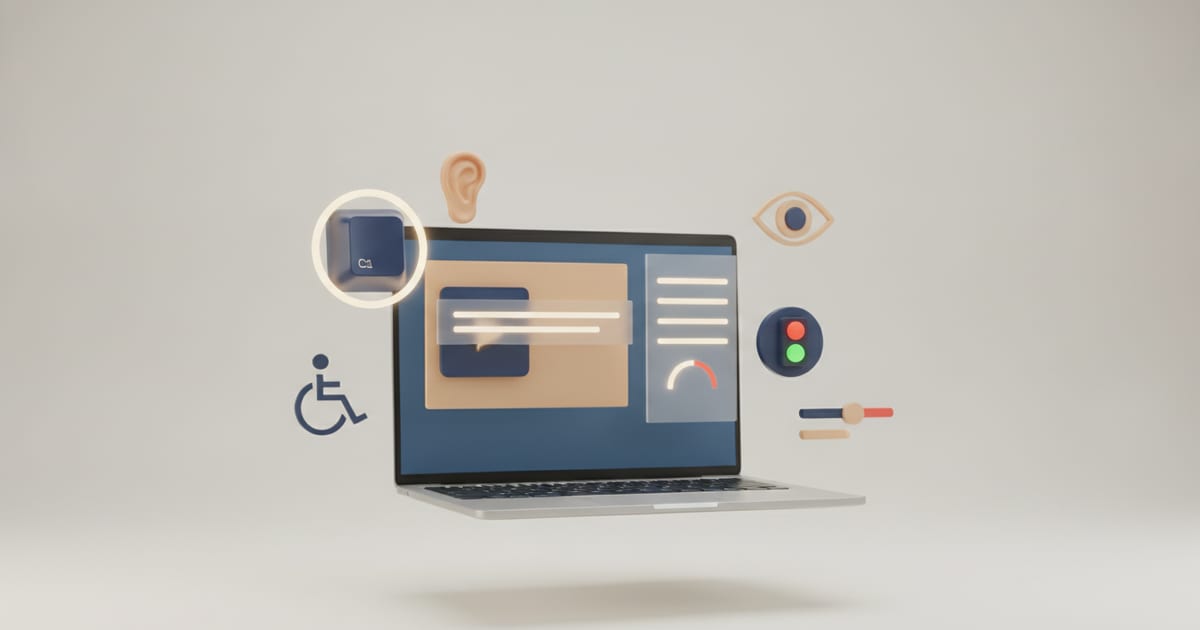
An accessible learning platform needs to support two different kinds of work: creating a course and taking it. A learner may need captions, a keyboard path or different reading settings. A teacher may need help describing an image or checking a document before publishing it. Both experiences belong in the product brief.
We developed EduSpera around that relationship. The platform connects courses, learning paths, submissions and feedback. Accessibility is a continuing design and engineering concern within those workflows. It is not a claim that every possible course, integration and user journey has been independently certified.
This article describes the approach and its limits, based on the implementation reviewed on 30 October 2026. The EduSpera product case study shows the wider interface and information architecture.
Accessible learning starts with the authoring tool
A course creator can introduce barriers even when the surrounding application is usable. A diagram may have an unhelpful description. A caption track may exist but misrepresent specialist terminology. A PDF can look polished while lacking a navigable structure.
W3C's guidance for accessible learning management systems makes this distinction explicit: authoring tools need to be accessible to their users and support the creation of accessible content. This gives the design team two responsibilities, rather than one toolbar to install.
In EduSpera, creator-side checks make potential content problems visible. Learner-side controls support reading preferences. The two reinforce one another, but neither removes the need for human judgement.
Make useful checks visible before publication
The content score is an aid to prioritisation. Its implementation considers several signals, including captions and their review status, image descriptions, colour contrast, content structure and document attachments. A useful result leads the creator to a specific issue and its context.
| Signal | What a creator can improve | What the check cannot establish alone |
|---|---|---|
| Captions | Add a track and review its wording | Whether every spoken detail is represented accurately |
| Image descriptions | Supply an appropriate alternative | Whether the description explains the educational meaning |
| Contrast | Review colour combinations | Whether the complete learning activity is accessible |
| Structure and links | Improve headings, tables and link text | Whether a learner understands the intended task |
| Attachments | Review document accessibility findings | Whether every page and reading order works in practice |
We avoid treating the total as a certificate. A high score can coexist with a barrier that the model does not evaluate. The relevant question is what the score inspected, not simply whether its badge is green.
The score also differs from a publication policy. EduSpera can apply an academy's requirement for human-reviewed video captions before publishing. That specific rule should not be described as a universal block based on the overall content score.
Give learners control without losing context
Reading preferences are useful when they work with the layout. Text size, spacing, themes and font choices need to preserve navigation, labels and the relationship between a lesson and its next action.
Our design focus is continuity: a learner should not have to rediscover the course outline after changing the presentation. A visible submission state matters as much as a comfortable reading size. When a mentor requests changes, the learner needs to understand what happened and where to continue.
Preferences do not replace captions, meaningful headings or accessible controls. They provide another way to use content that still needs a sound underlying structure. The broader EdTech design practice connects those decisions to course organisation and feedback.
Separate automated checks from conformance
The accessibility pipeline runs automated checks and keyboard smoke tests. Its documented blocking threshold concerns serious and critical automated violations; lesser findings can be logged, and authenticated test coverage depends on configured test accounts and routes. It would be inaccurate to describe this as exhaustive testing of every page or a guarantee of zero issues.
W3C explains that no automated tool alone can determine accessibility conformance. Human evaluation remains necessary. For a learning platform, that includes checking a meaningful task across screens: open a course, find a lesson, use its content, submit work and understand the response.
The EduSpera conformance report records the assessment scope and known limitations. The documented report is a vendor self-assessment and includes partially supported criteria. Third-party content and creator-supplied media require particular attention. Readers should check the current report rather than infer complete conformance from this article.
A practical review for an existing learning product
A team can use the same approach without rebuilding its platform. We would start with a representative course and a small set of tasks, then record evidence for each finding.
- Follow the creator's path, including media upload, image descriptions and document attachments.
- Review captions for accuracy and completeness, rather than just checking that a file exists.
- Complete the learner journey with a keyboard and an appropriate screen reader.
- Change reading preferences and confirm that context, focus and the next action remain understandable.
- Check assignment feedback, recoverable errors and progress states.
- Record the tested version, roles, devices, exclusions and unresolved barriers.
This is a review plan, not a report of a participant study conducted for this article. The UX audit checklist offers a broader framework, while our accessibility service covers assessment and remediation work.
Make the limitations useful
A good accessibility statement helps someone decide whether a product will work for their circumstances. It should identify known barriers, explain how to report a problem and distinguish the application from content supplied by others.
The design contribution is therefore practical: make issues discoverable, make fixes understandable and give people a usable route through the learning experience. EduSpera's tools support that work. Continuing evaluation, content review and accessible product decisions are what keep it moving.
Frequently asked questions
About the author
Design & Engineering Team
The UX Studio design and engineering team publishes practical notes on digital strategy, user experience, accessibility and implementation. The articles draw on work documented in the portfolio, including EduSpera, ClassWolf and the SupaSailing / SupaMaritime ecosystem.